Image
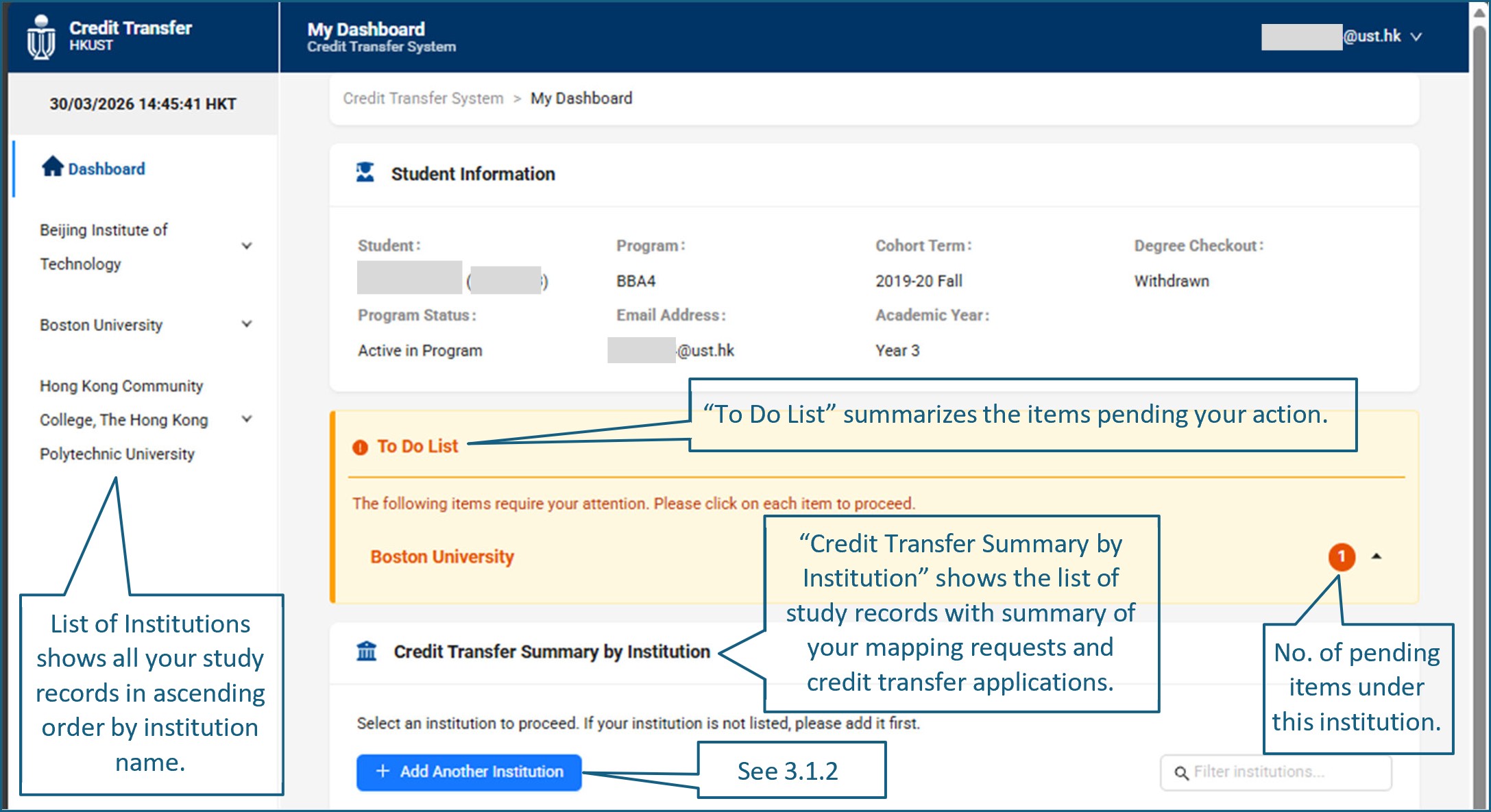
1.1. Log in via the Credit Transfer System (CTS) or the Student Information System (SIS).
1.2. You will be directed to the welcome page. Please read all the information and click “Start” to enter the Student Dashboard.
The Student Dashboard lists the institutions of your elsewhere studies, your Student Information, To Do List and Credit Transfer Summary by Institutions.
3.1. On Entry
3.1.1. Qualifications disclosed for admissions purpose
If the tertiary qualifications (e.g. local sub-degree study) obtained were disclosed to the URAO during the admission exercises, the corresponding study record will be transferred to the CTS automatically.
3.1.2. Non-disclosed qualifications
If you have obtained other tertiary qualifications prior to admission to the University but have not disclosed to the URAO, you can create an “On Entry” study record by clicking "+ Add Another Institution" under the Credit Transfer Summary by Institution section and create course mappings and submit credit transfer applications for this study record.
3.2. HKUST-organized study abroad
Study records for elsewhere studies organized by the University are created by the OGL shortly after confirmation of admission to the program.
3.3. Pre-approved self-arranged study abroad
Pre-study approval by School, in consultation with the relevant major departments, should be obtained. Upon approval of the self-arranged elsewhere studies, the OGL will create the relevant study record.
4.1. Search for Existing Course Mappings in the Credit Transfer System
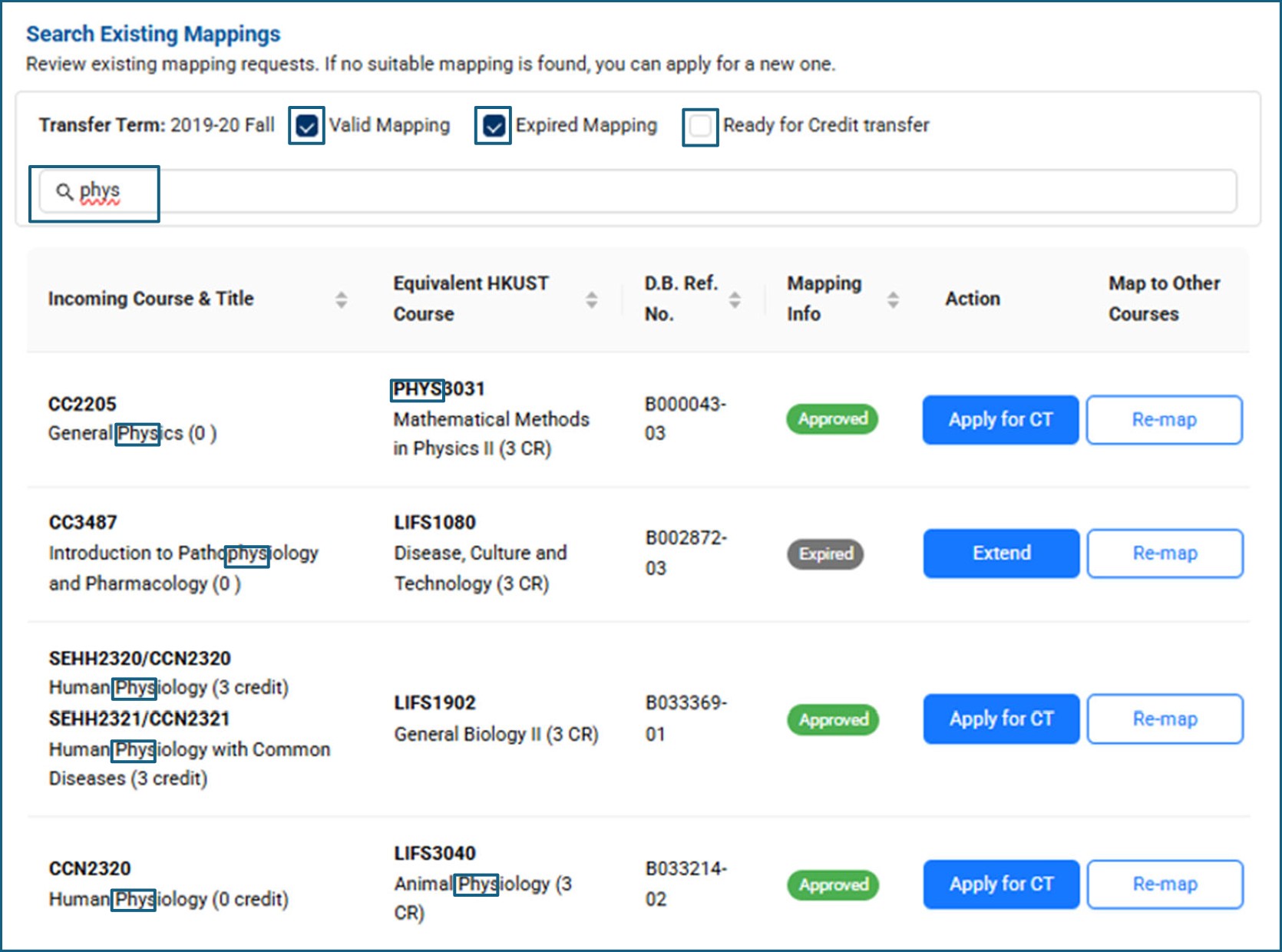
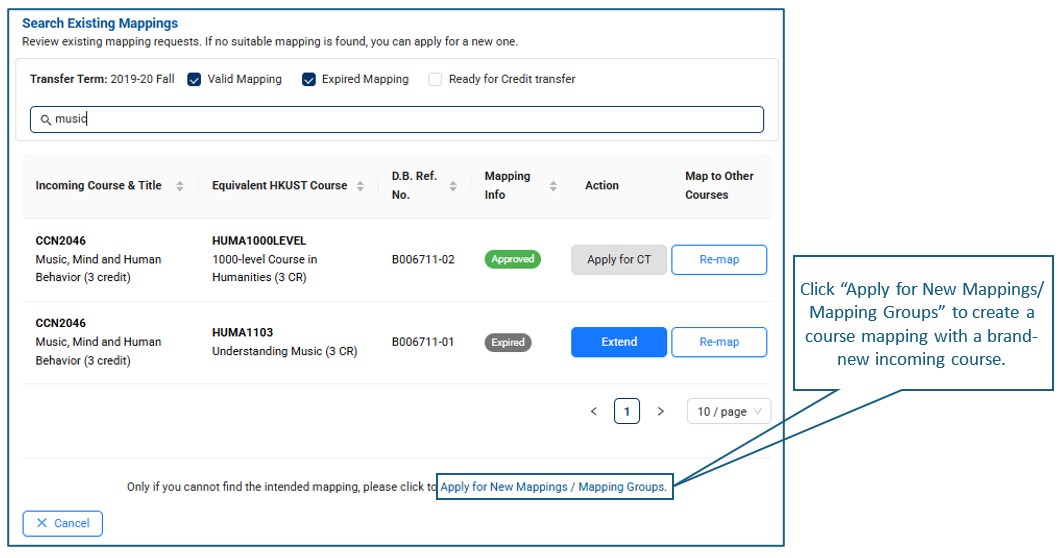
On the study record page, click the arrow on the right side of My Course Mapping Requests, then, click the “+ Start New Course Mapping Request” button. On the “Search Existing Mappings” page, both “Valid” and “Expired” mappings are displayed by default. You can filter the list to view only “Valid”, “Expired” or “Ready for Credit Transfer” mappings, or input keywords to refine the search result and locate the relevant mappings.
4.2. Create New Course Mappings
If any of the incoming course code, title, credit and credit unit are not the same as the existing mappings, a new course mapping (new D.B. Ref. No.) should be created.
You will be directed to a new page with three tabs:
(1) Incoming Course Details (tab 1) - input the incoming course information, upload supporting documents (e.g. course syllabus, teaching timetable, etc.) in pdf format and click “Next”.
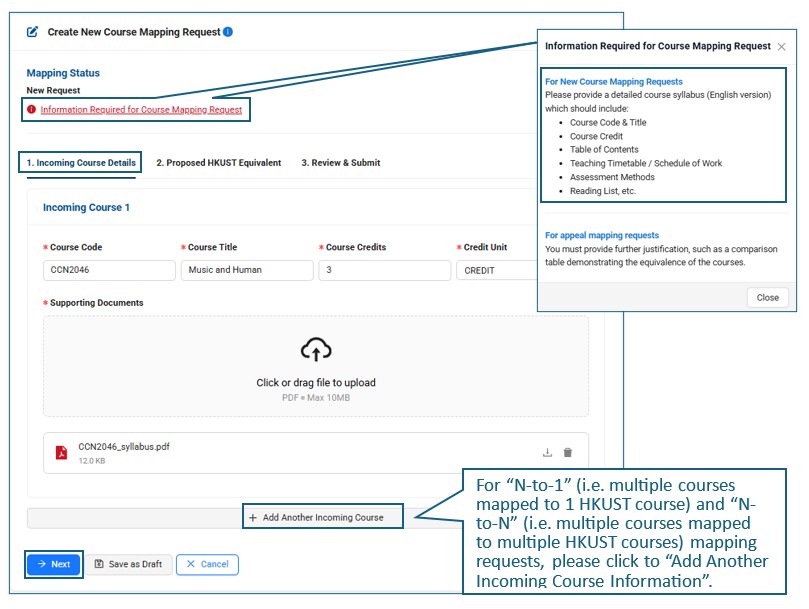
(2) Proposed HKUST Equivalent (tab 2) - under “HKUST Course”, click "Search" to search the proposed HKUST course in the pop-up window, press “Select” and return to the tab.
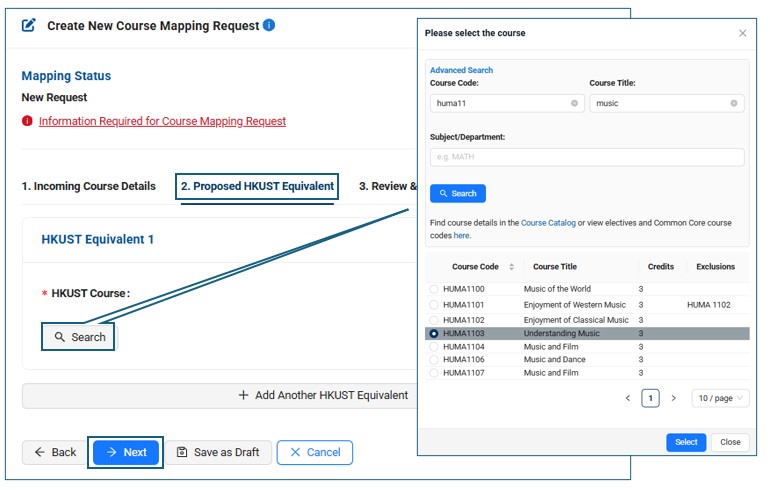
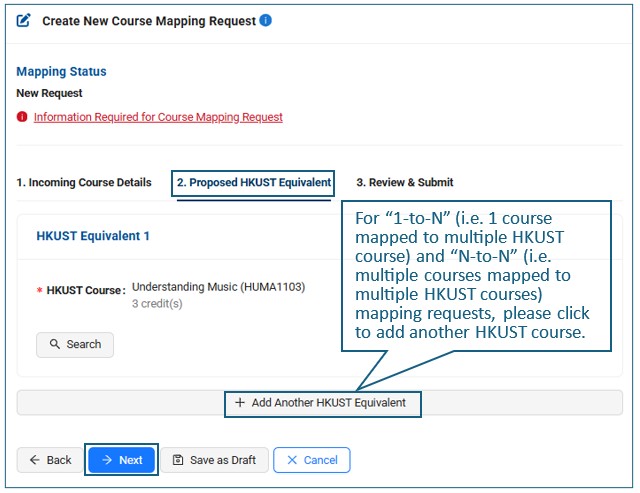
Click “Next” to review the information entered and documents provided.
(3) Review and Submit (tab 3) - check the information and “Submit” to create the course mapping request.
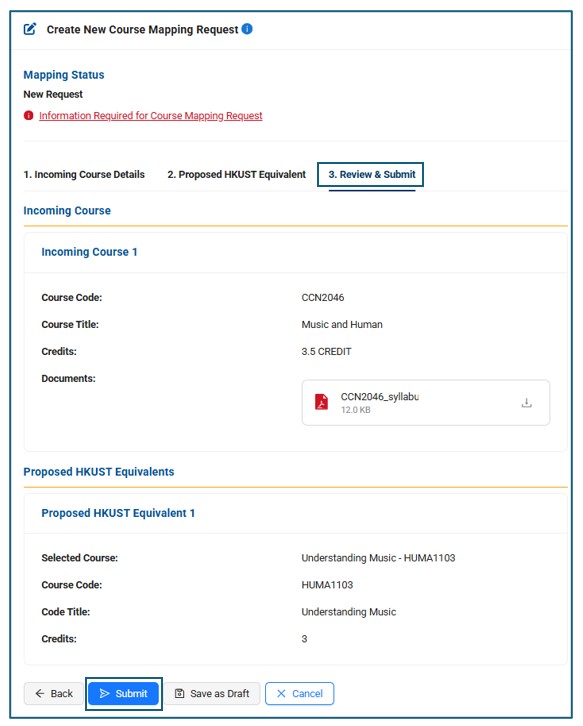
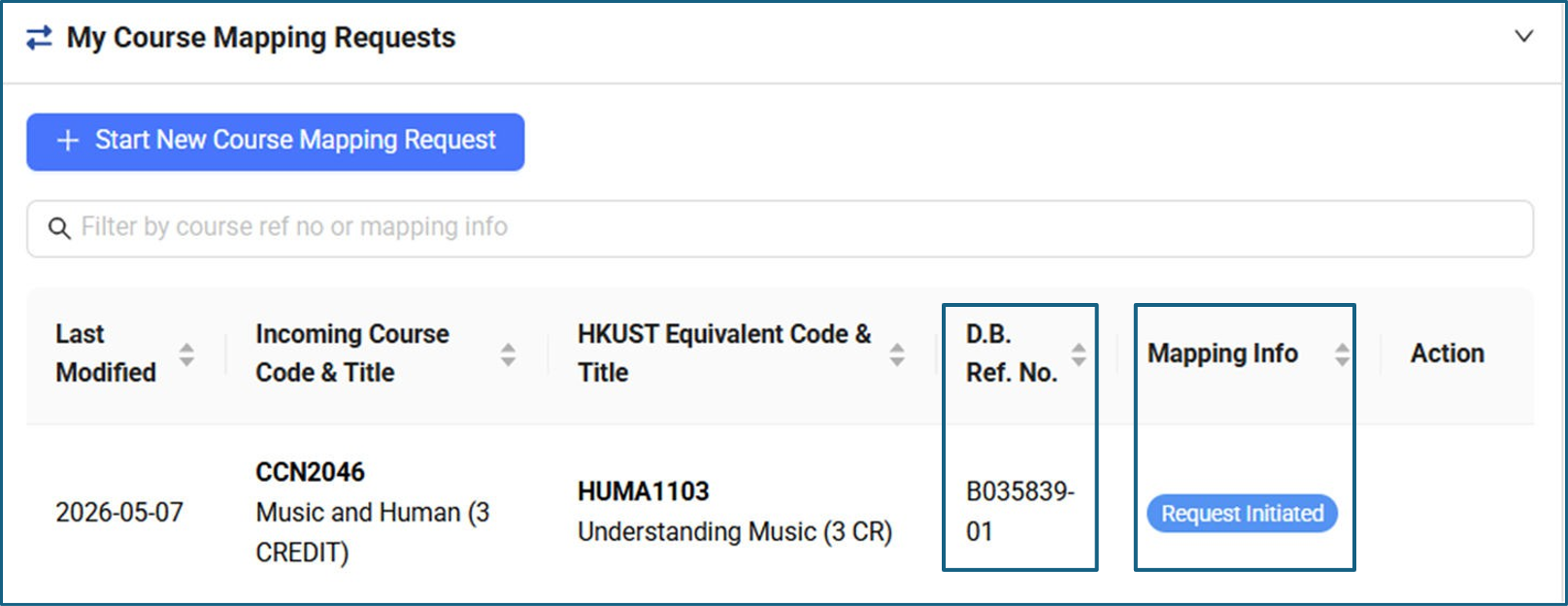
The new course mapping request created is listed under My Course Mapping Request with a new system-generated D.B. Ref. No. and mapping status “Request Initiated” as shown in the “Mapping Info”.
4.3. Add “Under Review” Mapping to My Course Mapping Request
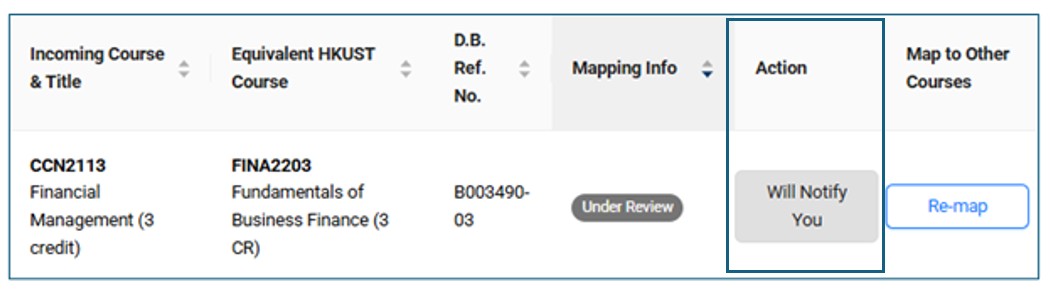
On the “Search Existing Mappings” page, there are mappings (mapping status: “Under Review”) created by other students pending evaluation by the relevant subject departments. You can click “Notify Me” to add the mappings to “My Course Mapping Requests” and get the update of the mappings.

The “Action” column will be changed to “Will Notify You”
4.4. Provide documents for “Need Further Info” Mappings
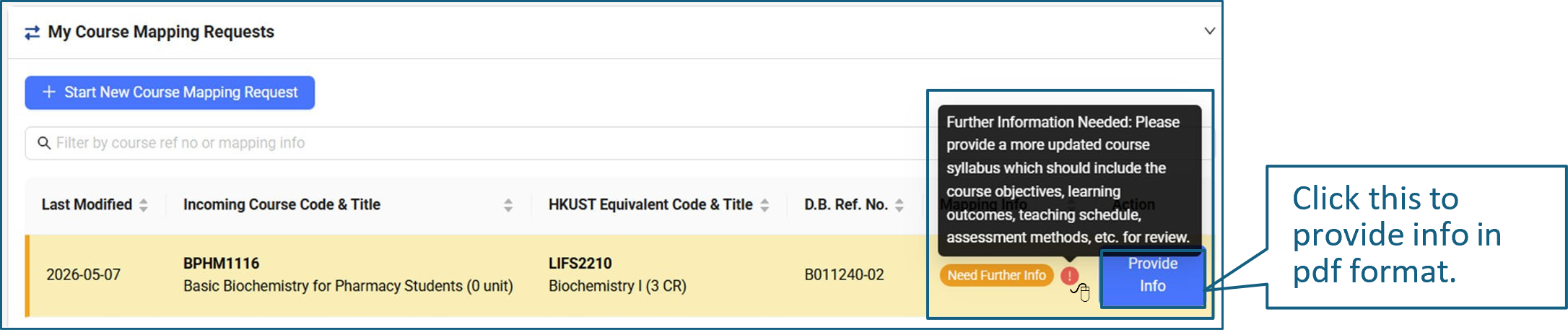
If the documents provided for mapping requests are considered not sufficient by the ARO and subject departments, the mappings will be returned to request for more information with mapping status “Need Further Info”.
In My Course Mapping Requests, you can mouse over the exclamation mark next to the mapping status to view the details of the requested information for course mapping evaluation.
If you search the mapping by “Search Existing Mappings”, you need to click the row to enter the mapping request and view the “Information Required” on the top of the page.
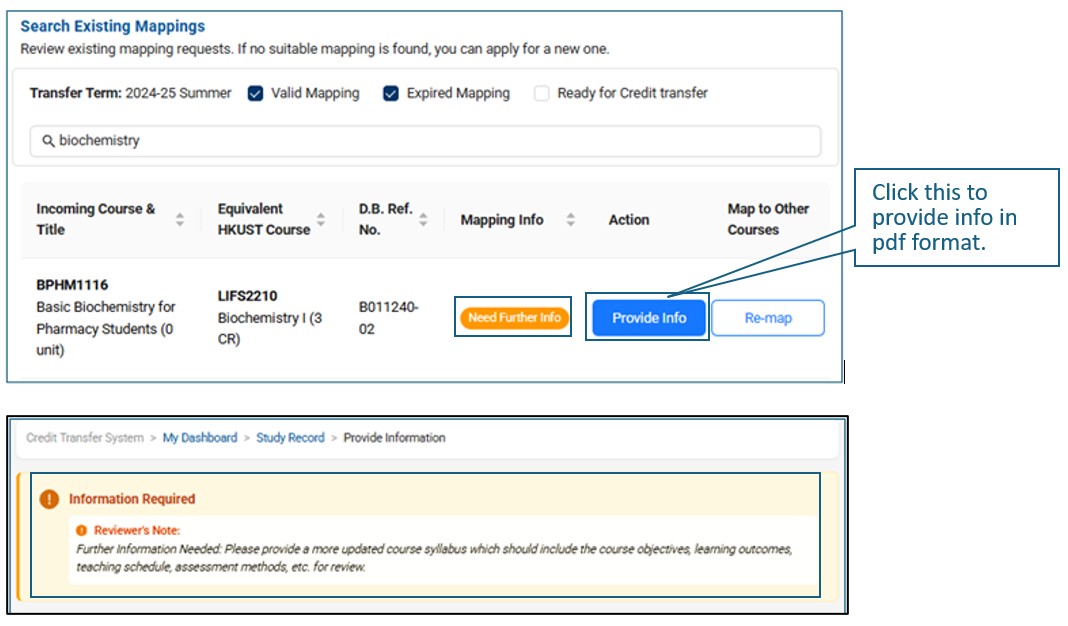
After you “Submit” the additional information documents and return to your Study Record, the status of the mapping will be updated to “Request Initiated”.
4.5. Create New Mapping Groups
If the incoming course you have taken / will take during your elsewhere study is not mapped to your intended HKUST course, you may “Re-map” the incoming course to another HKUST course.
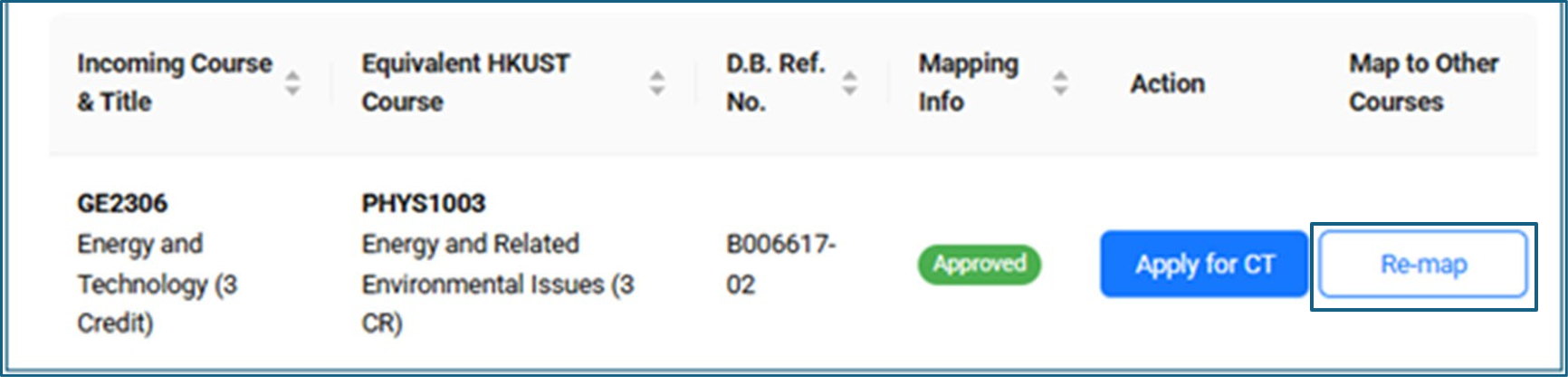
If you would like to “Re-map” the incoming course to a different HKUST course for a mapping that has already been approved by the same subject area (that is, PHYS in this case), the newly created course mapping group will be regarded as an “Appeal” mapping, and students are required to provide justification and/or comparison to show that the newly created mapping group is more equivalent to the existing approved mapping for consideration by the subject departments.
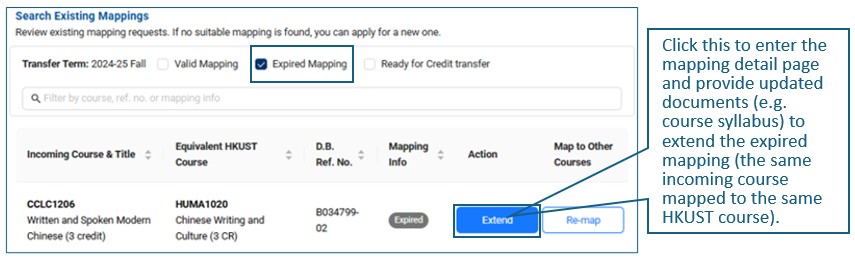
4.6. Extend “Expired” Mappings
Tick only the “Expired Mapping” in the “Search Existing Mappings” to view the expired mappings.
4.7. Appeal “Denied” Mappings
Denied mappings can be found in “My Course Mapping Requests” (if you raised, provided further information or added the mapping to your mapping request list) and in the “Search Existing Mappings”.

The denial reason, if any, is displayed on the top of the mapping detail page.

Students are required to upload supporting documents (e.g., comparison tables) and provide justification to “Submit” the appeal request.
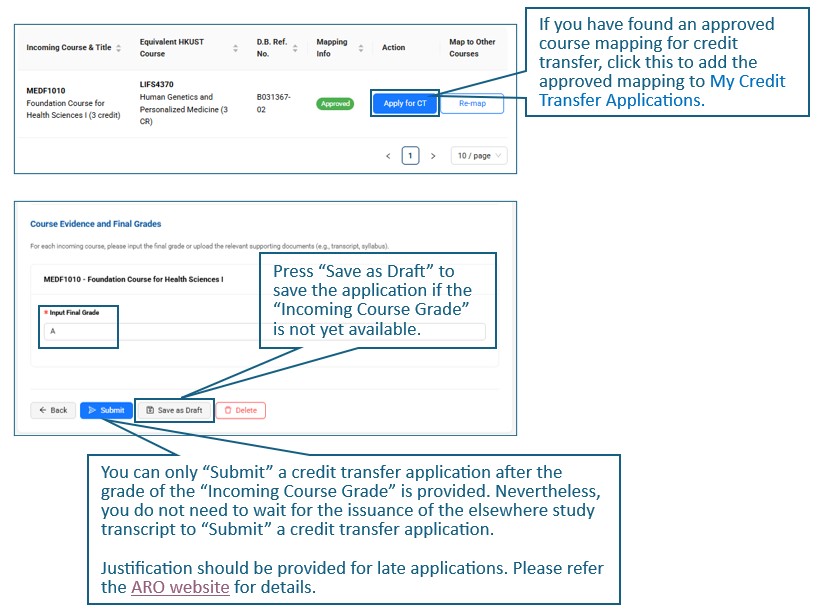
Students can only make credit transfer applications with approved course mappings which are valid in your “Transfer Term”.
5.1. Save Credit Transfer Applications as “Draft” and "Submit" Applications
5.2. Provision of Official Transcript
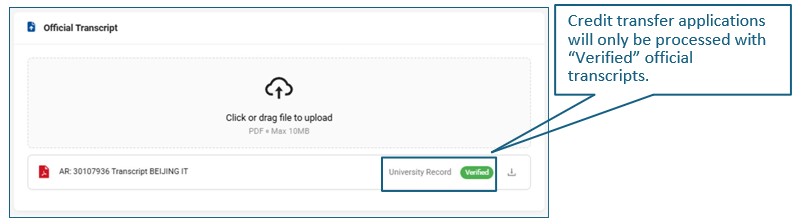
There are several ways for the ARO to receive the elsewhere study transcripts, after verified by the relevant university offices, to process students’ applications for credit transfer: (1) shared by university offices, (2) presented by students at the ARO, and (3) uploaded by students.
After checking the elsewhere study transcripts, ARO will assign a status (i.e., “Verified”, “Pending Review”, “Unofficial” and “Rejected”) to the document.
5.2.1. Admissions Documents
For tertiary qualifications disclosed to the URAO for admissions to the University, the URAO will verify the documents required and share them with the ARO for processing credit transfer.
5.2.2. HKUST-organized Study Abroad
For exchange-out programs, relevant School offices and/or the students will receive the transcripts from the exchange institutions directly depending on the practices of the institutions. You are advised to check with your School office if the transcripts will be shared with the ARO.
Instead, you may upload the transcript with digital signature or electronic transcript with blockchain authentication to the CTS for review by the ARO. Alternatively, you may present the physical true copy of the official transcript to the ARO for verification and scanning.
For other HKUST-organized study abroad programs coordinated by the OGL, the OGL would normally receive the transcripts from the institutions directly and share them with the ARO.
5.2.3. Pre-approved Self-arranged Study Abroad
Upon receipt of the official transcript, you should upload the transcript with digital signature or electronic transcript with blockchain authentication to the CTS for review by the ARO or present the physical true copy of the official transcript to the ARO for verification and scanning.
5.3. Program Office Endorsement for Credit Transfer Applications
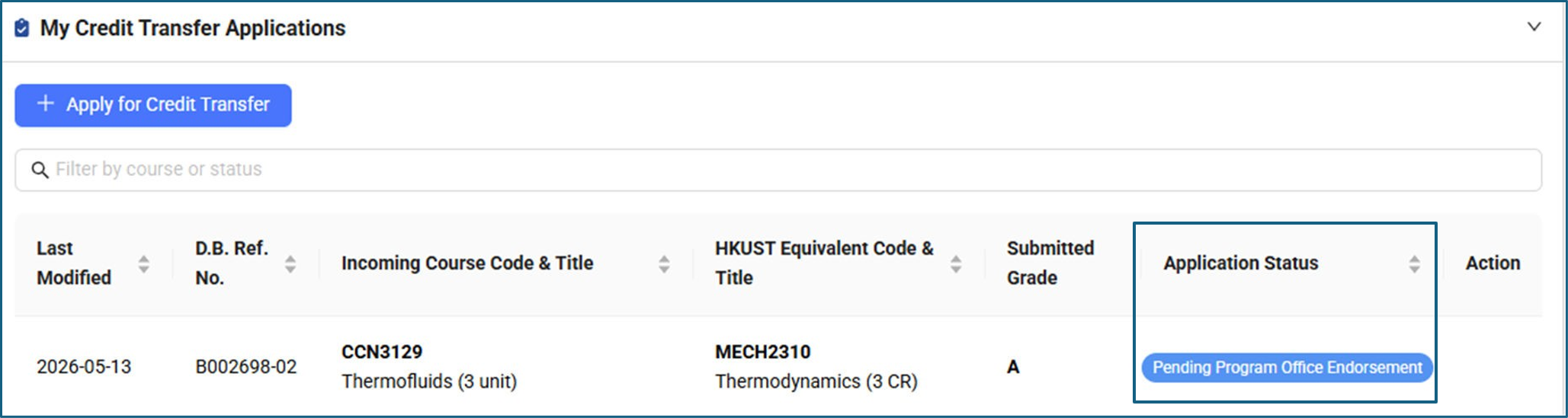
“Program Office Endorsement” for credit transfer applications are required for designated groups of students, categories of study records, HKUST courses approved, etc.
Your credit transfer applications will be routed to the relevant program offices for consideration. Only endorsed applications will further be routed to the ARO for processing.
Application pending endorsement by program office:
Application endorsed by program office:
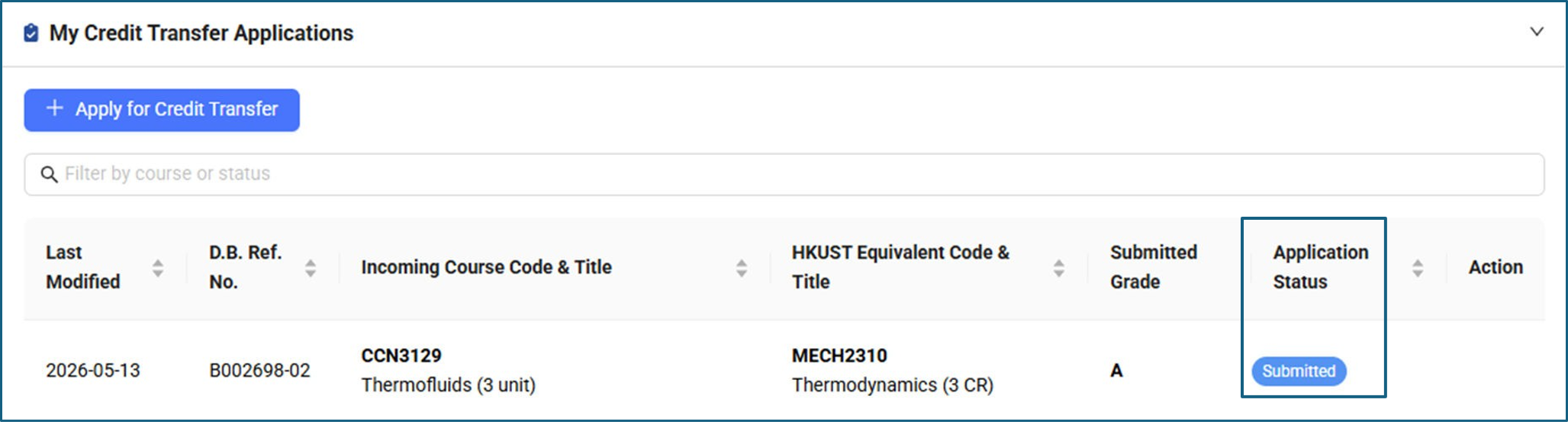
5.4. Application “Need Further Info”
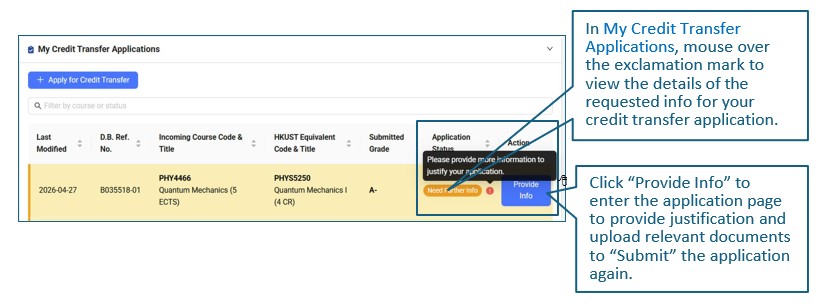
“Submitted” credit transfer applications may be returned to students for clarification, provision of proof, etc. (application status: “Need Further Info”).
If you have any questions on the use of CTS, please contact the Credit Transfer and Graduation Team of the Academic Registry.
|
School |
Phone |
ARO Enquiry Form |
|
AIS |
34693173 |
|
|
SBM |
34693171 |
|
|
SENG |
34693172 |
|
|
SHSS |
34693173 |
|
|
SSCI |
34693173 |
For technical issues, please contact the ITSO (cchelp@ust.hk).